
Pre-Event Setup Instructions
Greetings, fellow explorer!
Thanks for registering for the event Pie & AI Pune: Your Personal AI – Run Models Locally.
To get the most from this event, please perform these quick setup steps before the event:
Setup Steps
1 Check your system RAM size
Check your system information to find out how much RAM it has.
Note: To run Open Source models locally, your system should preferably have a minimum of 8GB RAM. If you don't have enough RAM, you can instead run Ollama's cloud models.
2 Create Ollama Account & Install Application
Create an account on Ollama here: https://ollama.com/signup
Also download and install the Ollama desktop application for your operating system.
The Ollama desktop application and Ollama Command Line Inteface (CLI) are now available on your system.
3 Sign into your Ollama Account
Start the Ollama desktop application. From the Settings of your Ollama desktop application, sign into your Ollama account.
On successful sign in, you might be prompted to open the desktop application. Accept/OK the prompt.
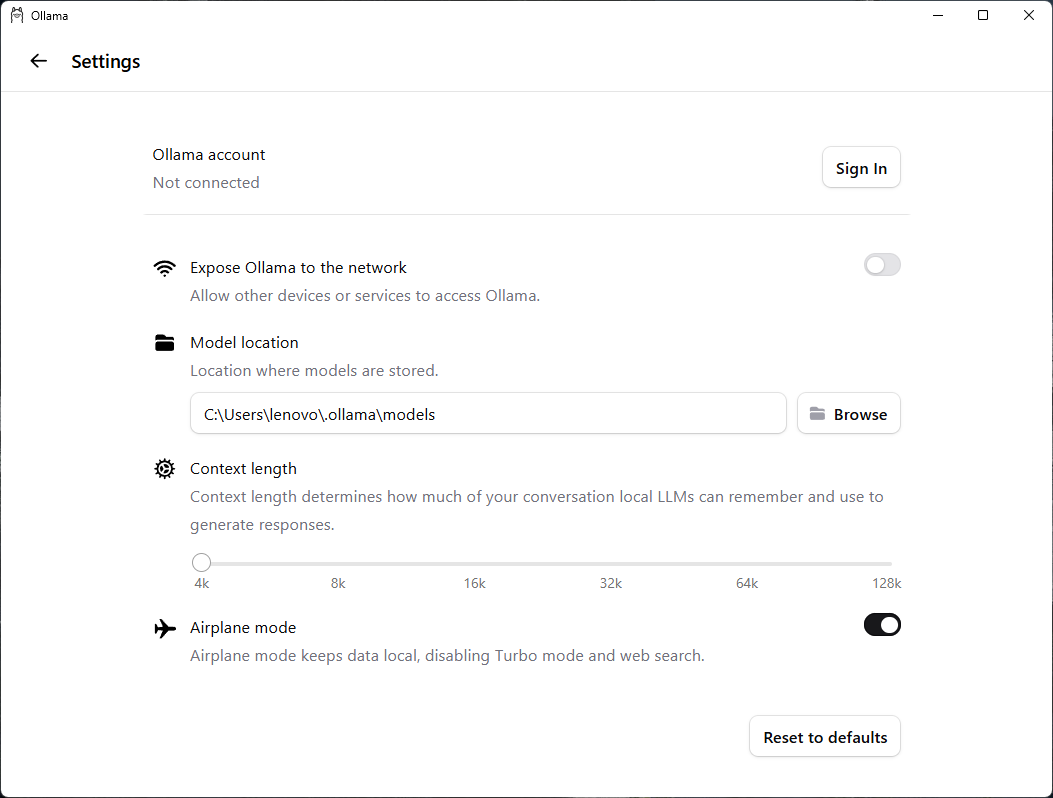
Ollama Settings Screen
4 Install A Model
Model Download and Installation with Prompt in Ollama application
i Click New Chat on the desktop application if another chat is open.Otherwise, skip to the next step.
ii Enter a model name phi3:3.8b.
iii Enter any text prompt. Here's an example:
"Which models on Ollama can be run on systems with less than 5GB RAM?"
iv Submit the prompt.
Note: You might notice a progress bar in the desktop application indicating download and installation of the phi3:3.8b model, before you see a response to the prompt. Wait for the download and installation to finish, and the complete response to be displayed.
Troubleshooting: Model installation failure due network connection errors
If you see an error like "max retries exceeded" or "dial tcp: lookup... no such host", this indicates a network connectivity issue.
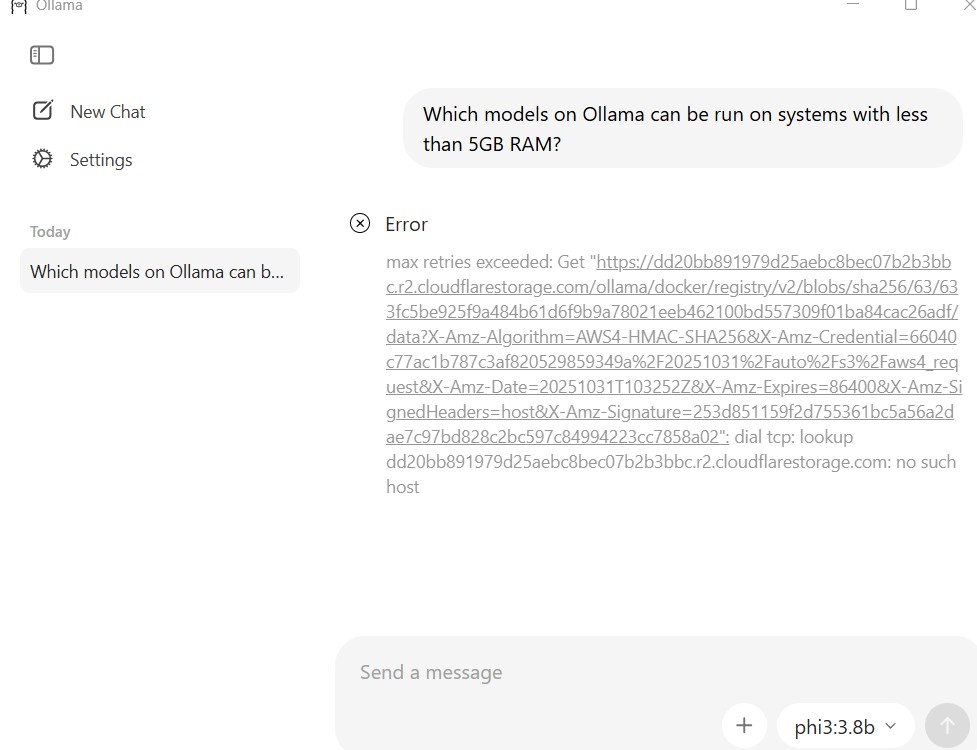
Model installation error in Ollama desktop application
Solutions:
- Check your internet connection and ensure it's stable.
- Disable VPN or proxy if you're using one.
- Check whether your firewall settings are blocking Ollama from downloading models.
- Try again after a few minutes. The model registry might be temporarily unavailable.
- If the problem persists, try using the CLI method:
ollama pull phi3:3.8b.
5 Verify Model Installation
Open a command prompt or terminal on your system and run the following command:
ollama list
You should see the model phi3:3.8b listed in the output.
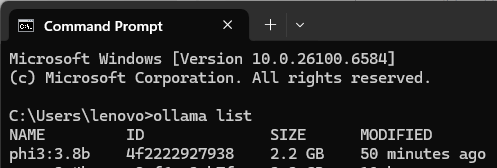
Verification of Phi3 Model Installation
Congratulations! You have installed your first Open Source model phi3:3.8b on Ollama to run on your system.
6 Install Gemma3 Model
Now install another Open Source model Gemma3:4b by running this command in the command prompt or terminal:
ollama pull gemma3:4b
Note: You might see the model installation in progress. Wait for the installation to finish.
This is another way of installing Open Source models on Ollama.
Troubleshooting: Model installation errors
Same as in the Ollama desktop application, the "max retries exceeded" errors in Ollama CLI also indicate network connectivity issues.:
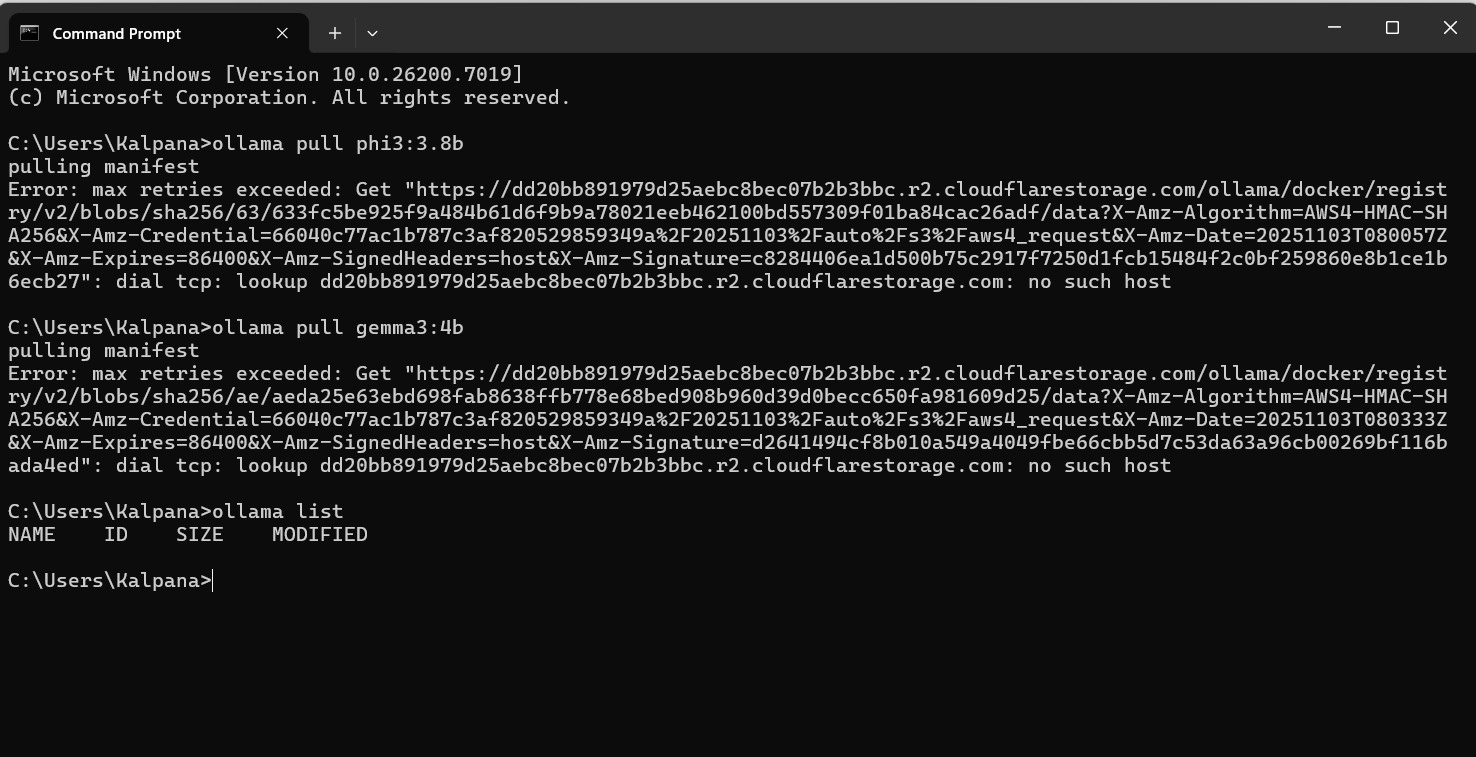
Model installation error in Ollama CLI
Solutions:
See the troubleshooting steps for Ollama desktop application.
7 Verify Model Installation
Run the following command again in the command prompt or terminal to confirm that gemma3:4b is now added to the installed model list:
ollama list
8 Create Hugging Face Account
Create a Hugging Face account here: https://huggingface.co/join
That's it! You are ready to run models locally on Ollama desktop and CLI.
Explore the next steps