Workshop Instructions
Prerequisites
Please complete the setup before following these instructions.
Message from Andrew Ng
Watch Andrew Ng's special message for the Pie & AI: Pune event participants.
Explore
Explore the phi3:3.8b and gemma3:4b Open Source large language models (LLMs) in the Ollama model library. Note their sizes and intended uses. Do any intended uses match your requirements?
Look up Ollama cloud models. Find out which models are available as Ollama cloud models and when to use them.
Generate Content with Locally-Run Open Source Models
Running Open Source models locally gives you complete privacy, eliminates internet dependency, reduces costs, and provides full control over your AI interactions. Your data never leaves your device, making it ideal for sensitive work or areas with limited connectivity.
Popular tools for running models locally include Ollama, LM Studio, and GPT4All. For this event, we'll be using Ollama to run models locally.
Demonstrate Offline Capability:
- Start the Ollama desktop application.
- From the Settings of the application, sign out of your Ollama account. Also, enable Airplane mode.
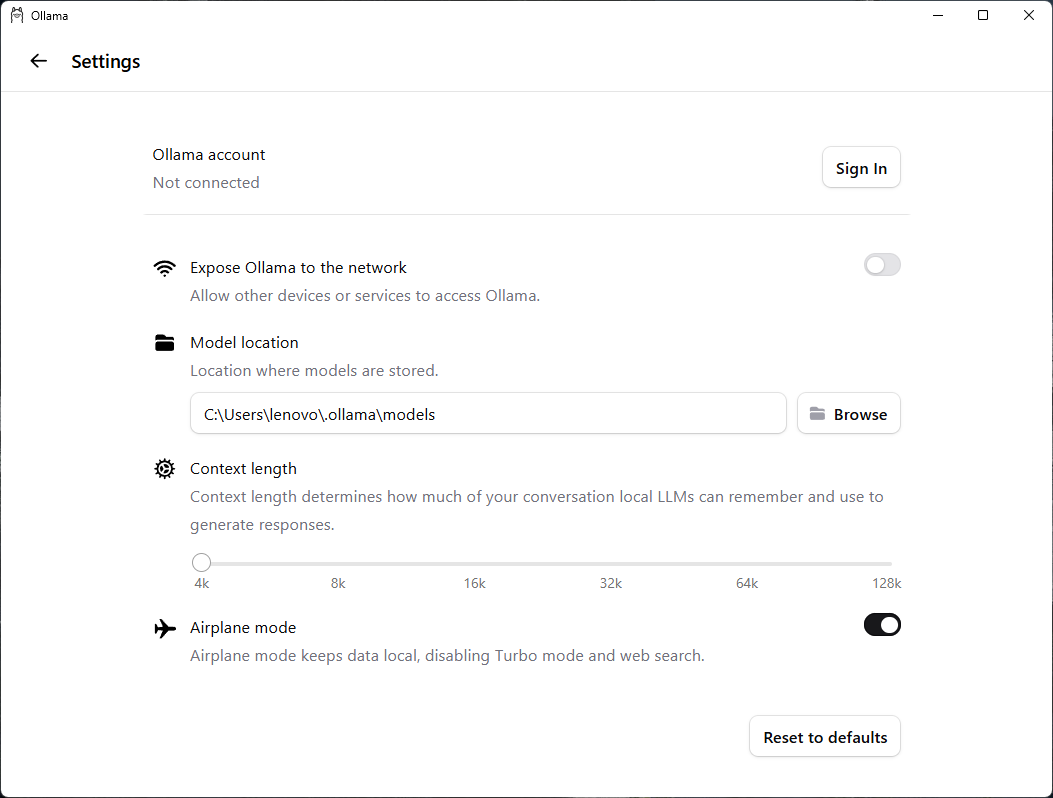
Ollama Settings - Signed Out with Airplane Mode Enabled
Now the Ollama desktop application cannot connect to the internet or access models available online.
Note: These steps are only to emphasize that the installed models can run locally, stand-alone, without connectivity. Actually, Ollama by default runs smaller models like phi3:3.8b and gemma3:4b this way without requiring you to sign out or enable Airplane mode.
Now you are ready to run the installed models locally and generate content using them.
Run a Model Using Ollama Desktop Application:
- In the Ollama desktop application, select the
phi3:3.8bmodel. - Submit a prompt to generate content. See some prompt examples here.
Running a model in the Ollama desktop application
- Click the Stop button to stop the running model.
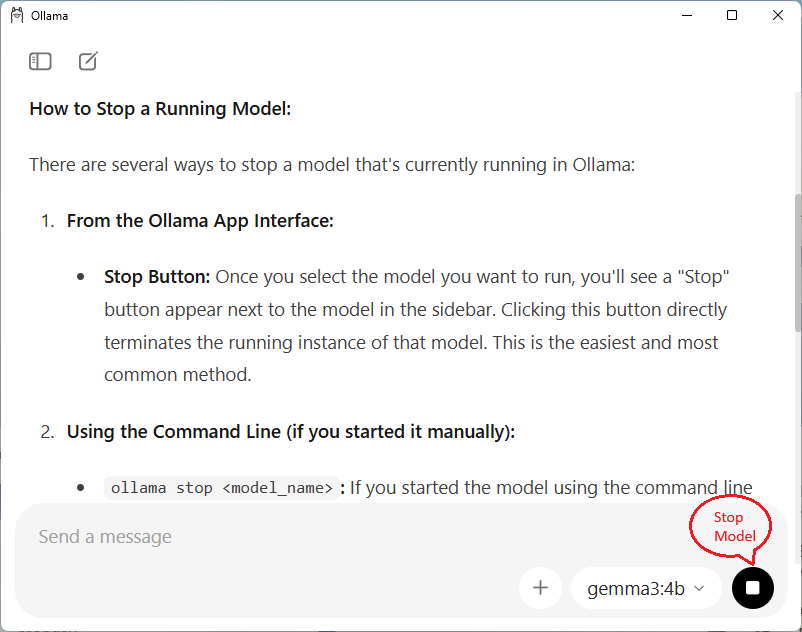
Stopping a model in the Ollama desktop application
Run a Model Using Ollama Command Line Interface (CLI):
- In a Command Prompt or terminal, run the following command. The model is now running in prompt mode.
ollama run gemma3:4b - Enter your prompt text to generate content and press Enter. See some prompt examples here.
You should see a response appear in the CLI window.
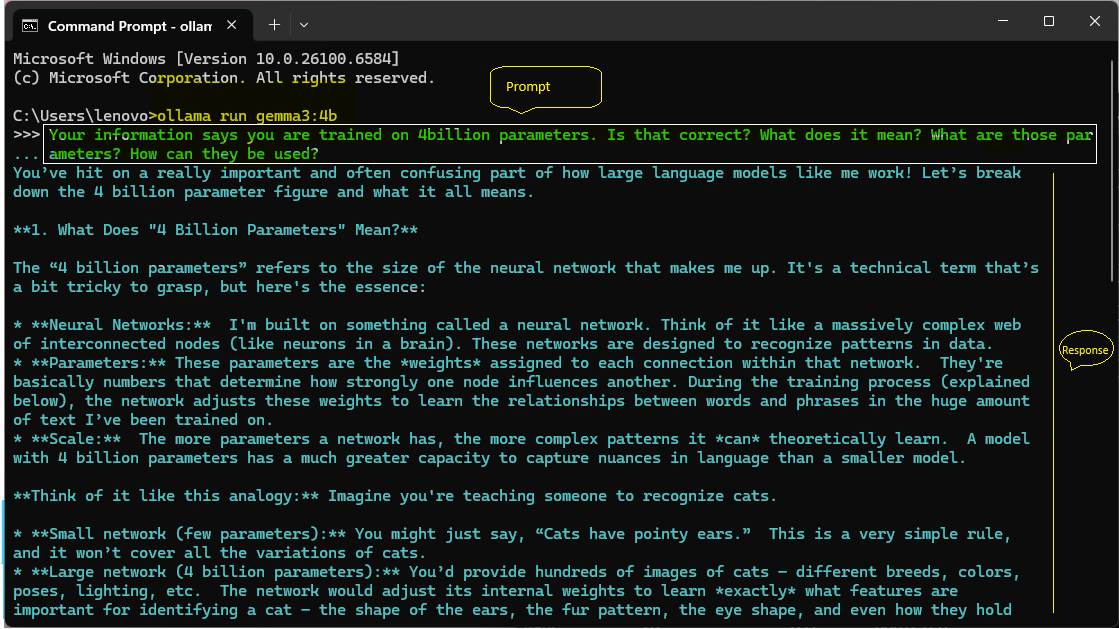
Prompting a model using the Ollama CLI
- To exit the model's prompt mode at any time, enter the following command and press Enter.
/bye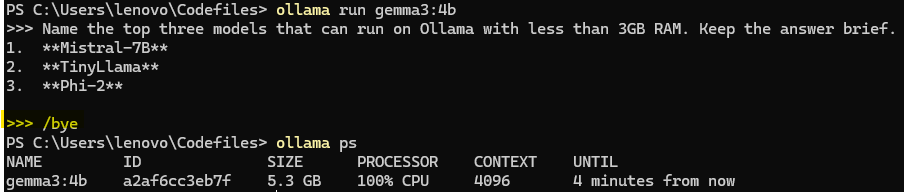
Exit the model's prompt mode using the /bye command in Ollama CLI
- Stop the running model using the following command:
ollama stop <model_name>
Stopping a model using the ollama stop command
Troubleshooting: Failed model runs due to system memory errors
If you see "Error: 500 Internal Server Error: model requires more system memory than is available", your system doesn't have enough RAM for the selected model.

Insufficient memory error in CLI
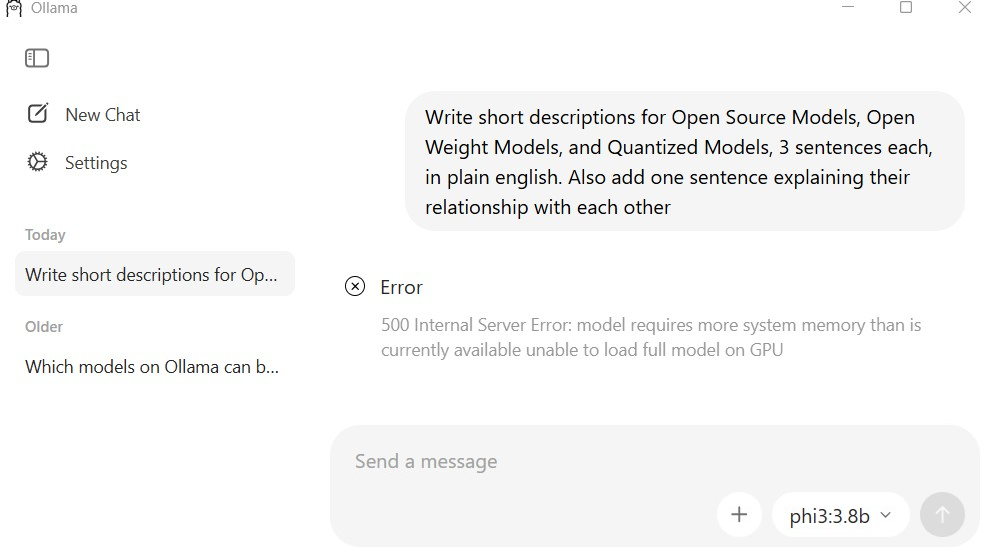
Insufficient memory error in desktop application
Solutions:
- Check if other models are running using the
ollama pscommand. Stop the running models using theollama stop <model_name>before running your desired model again.
Checking model status and stopping models in the Ollama CLI
- Close other applications to free up RAM.
- Try a smaller model. For example, use phi3:mini instead of phi3:3.8b.
- Use Ollama cloud models like
gpt-oss:120b-cloud.
Generate Content Using Online Open Source Models
Models performing tasks like image generation require more computational resources and memory than text-only models. Therefore, they are run online instead of locally to ensure optimal performance and access to powerful hardware.
Ollama Cloud Models: Ollama provides access to larger, more capable models run on cloud, such as gpt-oss:120b-cloud, which would be impractical to run locally due to their massive size and resource requirements. Try prompting the gpt-oss:120b-cloud model in Ollama desktop application or from command line. See some prompt examples here.
Hugging Face Spaces: Hugging Face Spaces can also be used to run models online, providing free access to various AI models. For example, you can try the Qwen Image model for image generation and analysis tasks. Try prompting the Qwen Image model to generate images and infographics. See some prompt examples here.